
How to connect Amazon Ads to Claude: a 2026 guide
Amazon Ads MCP Server connects Claude directly to your advertising data and to the Amazon Ads API. The whole setup: Amazon Developer, Login with Amazon, OAuth 2.1 and Claude Desktop, with the two account modes and the checks to run before anything writes.
By Mariya Tkach, Head of Marketing and Growth, UNITIX Agency
See more UNITIX in Google
Add UNITIX to your Preferred Sources.
Amazon Ads MCP Server connects Claude directly to Amazon Ads data and functions. Once it is set up, Claude can answer an ordinary written request by listing your advertising accounts, pulling performance, building a report, changing a campaign budget and, with the right permissions, running other operations through the Amazon Ads API.
The difference from a normal API integration is that nobody has to assemble a multi-step workflow out of individual API calls. The server turns Amazon Ads API capabilities into standardised MCP tools and skills that an AI client can use.
This guide covers the most practical route: Amazon Developer, Login with Amazon, OAuth 2.1, Claude Desktop and the official Amazon Ads MCP Server.
One requirement before anything else. You need an Amazon Developer account and an application with access to the Amazon Ads API. Access to the Advertising Console is not the same thing and will not do.
Amazon's announcement: Introducing the Amazon Ads MCP Server, 2 February 2026.
What the Amazon Ads MCP Server is
A standardised access layer for AI models and agents. It turns complex Amazon Ads API operations into tools a model can call from natural language.
For example:
Show me campaign performance for October 2025 on [account_id].
or:
Increase my campaign budget to $500 on [campaign_id].
The chain looks like this:
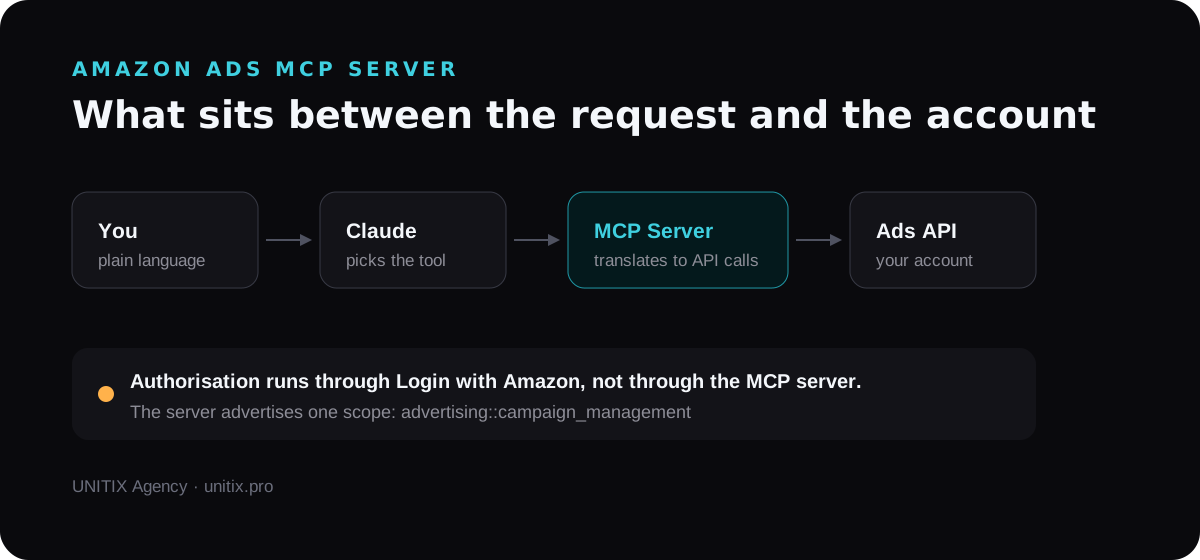
Amazon is explicit that it does not own the models that connect. Claude, ChatGPT, Amazon Kiro, Amazon Bedrock, Amazon AgentCore and other MCP-compatible applications can all use the server.
What MCP is
MCP, the Model Context Protocol, is an open standard for two-way interaction between AI applications and outside data and systems.
Two words matter in the Amazon Ads context:
- Tool — a function the agent calls to perform an action.
- Skill — a prepared Amazon Ads prompt instruction that walks the model through an advertising workflow and helps it use the tools correctly.
What Claude can do once connected
Amazon lists these scenarios:
- list your advertising accounts;
- pull campaign performance;
- retrieve invoices and account information;
- create a campaign report;
- change a campaign budget;
- create a Sponsored Products campaign;
- extend a campaign to a new marketplace.
Amazon's own example:
Create a Sponsored Products campaign in the US and Canada for [ASIN]
with a $20 budget and [ASIN] with a CAD$15 budget.
So the server is not only for reading. It writes.
What you need
- an Amazon Developer account;
- a Login with Amazon application;
- approved access to the Amazon Ads API;
- a Client ID;
- a Client Secret, for a private OAuth client;
- Claude Desktop;
- the regional MCP Server URL.
| Region | MCP Server URL |
|---|---|
| NA, North America | https://advertising-ai.amazon.com/mcp |
| EU, Europe | https://advertising-ai-eu.amazon.com/mcp |
| FE, Far East | https://advertising-ai-fe.amazon.com/mcp |
These URLs are not region agnostic. Use the endpoint for your region: a profile registered in North America will be refused by the European endpoint.
We checked all three on 29 August 2026, without credentials. Each answers
401 Authorization Required, which is what a live protected endpoint should do.
Why OAuth 2.1 is easier
The server supports both access-token authorisation and OAuth 2.1.
For Claude Desktop, OAuth 2.1 is easier: Claude walks you through the browser-based Login with Amazon flow itself, so no access token has to be stored by hand in a configuration file.
Public client. Client ID only. The access token lasts about an hour, after which you may have to authorise again.
Private client. Client ID and Client Secret. The refresh token is held by the client and access tokens can be renewed automatically.
One check worth doing first
The server publishes its own authorisation rules, and they are readable without an account. The 401 response carries this header:
www-authenticate: Bearer realm="mcp",
  resource_metadata="https://advertising-ai.amazon.com/.well-known/oauth-protected-resource"
And that document says:
{
  "resource": "https://advertising-ai.amazon.com",
  "authorization_servers": ["https://lwa.amazon.com"],
  "scopes_supported": ["advertising::campaign_management"]
}
Two things follow. Authorisation runs through Login with Amazon, at
https://lwa.amazon.com/ap/oa, with the token exchange at
https://api.amazon.com/auth/o2/token and PKCE S256 required. And there is
exactly one scope: advertising::campaign_management. If your security profile
does not carry it, nothing else in this guide will help. Check that first.
Step 1. Confirm your Amazon Ads API access
Sign in to Amazon Developer. Your application needs an LwA security profile and approved Amazon Ads API access.
Step 2. Find the Client ID and Client Secret
Open the Login with Amazon console and your application's security profile. You need the Client ID, and the Client Secret if you intend to use a private OAuth client. Do not publish either.
Step 3. Add the Claude Desktop callback URL
In the security profile, open Web Settings → Allowed Return URLs and add:
https://claude.ai/api/mcp/auth_callback
Without it the OAuth flow can end in a redirect URI mismatch error. Add the line; do not remove the ones already there.
Step 4. Add the server in Claude Desktop
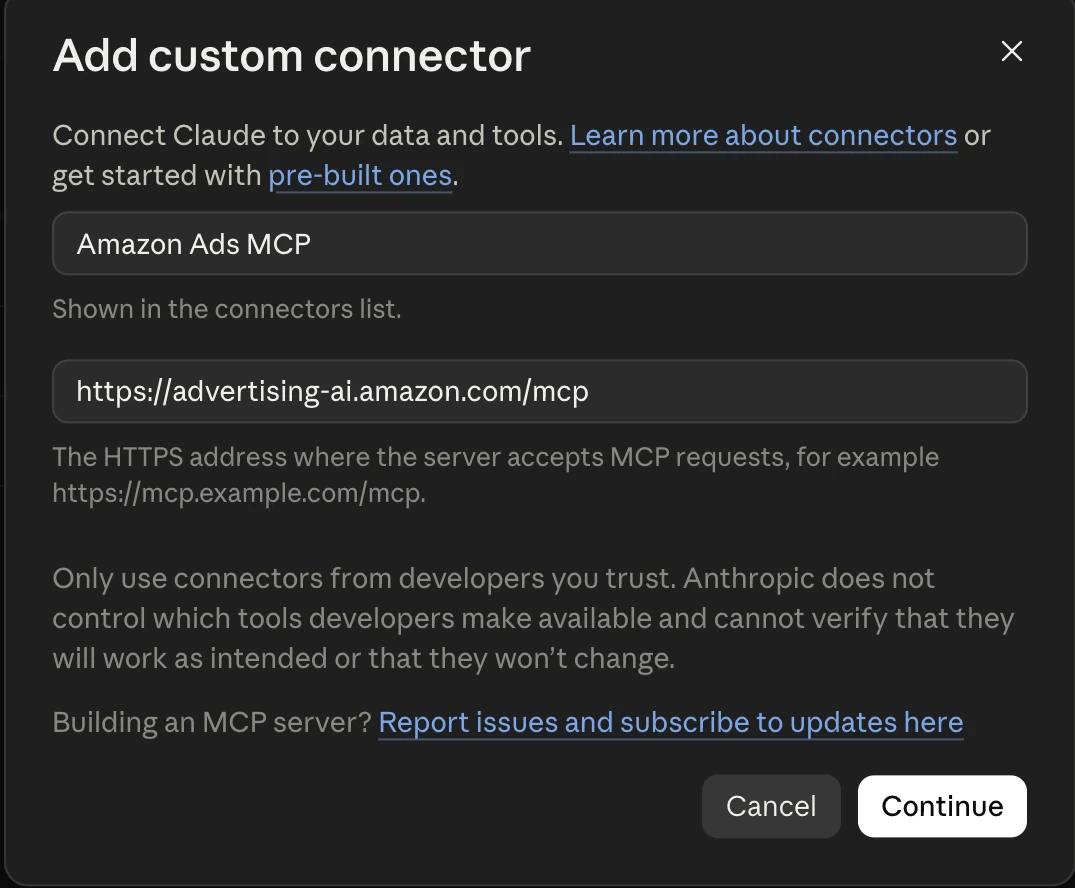
Open Customize → Connectors → Add custom connector.
Name it Amazon Ads MCP, give it the regional Server URL, and in Advanced
settings add the Client ID, and the Client Secret if you are using a private
client.
Step 5. Sign in with Amazon
Adding the connector starts the OAuth 2.1 flow: sign in with an Amazon account that has advertising access, review the permissions, press Allow, and return to Claude Desktop. Amazon sends you back to the Claude callback.
Step 6. Check the connection
First request:
Show me my advertising accounts
Claude should call the tool account_management-query_advertiser_account and
return the advertising accounts available to you.
Dynamic and Fixed Account Context
Dynamic Account Context is the default. The model receives the list of accounts and you choose the account or profile you want:
Can you give me the advertiser accounts that I have access to?
Fixed Account Context sets the account identifier in advance, through a header:
Amazon-Ads-AI-Account-Selection-Mode: FIXED
with at least one account identifier: Amazon-Advertising-API-Scope,
Amazon-Ads-AccountID or Amazon-Ads-Manager-AccountID.
For Claude Desktop, most people are better off starting with Dynamic Account Context.
Example prompts
Show me my advertising accounts.

Show me campaign performance for October 2025 on [account_id].

Create a Campaign report for [account_id].

Increase my campaign budget to $500 on [campaign_id].

Create a Sponsored Products campaign in the US and Canada for [ASIN]
with a $20 budget and [ASIN] with a CAD$15 budget.

Add UK to [campaign_id] with a £10 budget.
What creating a campaign looks like
Amazon publishes its own example of creating a Sponsored Products campaign in Fixed Account Context. It is reproduced here as text rather than as a screenshot, because it is text.
> Can you create an SP Campaign for me? Name it "Valentines Day Feb 2026"
  with a Start Date of Feb 1st and a budget of $100.

> I'll create a Sponsored Products campaign for you with those specifications.
  Running tool campaign_management-create_campaign (from mcp server: amzn-ads-mcp)

  {
    "body": {
      "campaigns": [{
        "adProduct": "SPONSORED_PRODUCTS",
        "budgets": [{
          "budgetType": "MONETARY",
          "budgetValue": { "monetaryBudgetValue": { "monetaryBudget": { "value": 100 } } },
          "recurrenceTimePeriod": "DAILY"
        }],
        "marketplaceScope": "SINGLE_MARKETPLACE",
        "marketplaces": ["US"],
        "name": "Valentines Day Feb 2026",
        "startDateTime": "2026-02-01T00:00:00Z",
        "state": "ENABLED"
      }]
    }
  }

Allow this action? Use 't' to trust (always allow) this tool for the session. [y/n/t]:
And the result:
> y
  Completed in 1.554s

> Campaign created successfully! Here are the details:
  Campaign Name: Valentines Day Feb 2026
  Campaign ID: 300378891364541
  Ad Product: Sponsored Products
  Start Date: February 1, 2026
  Daily Budget: $100 USD
  Marketplace: US
  State: Enabled
  Bid Strategy: Sales Down Only (default)
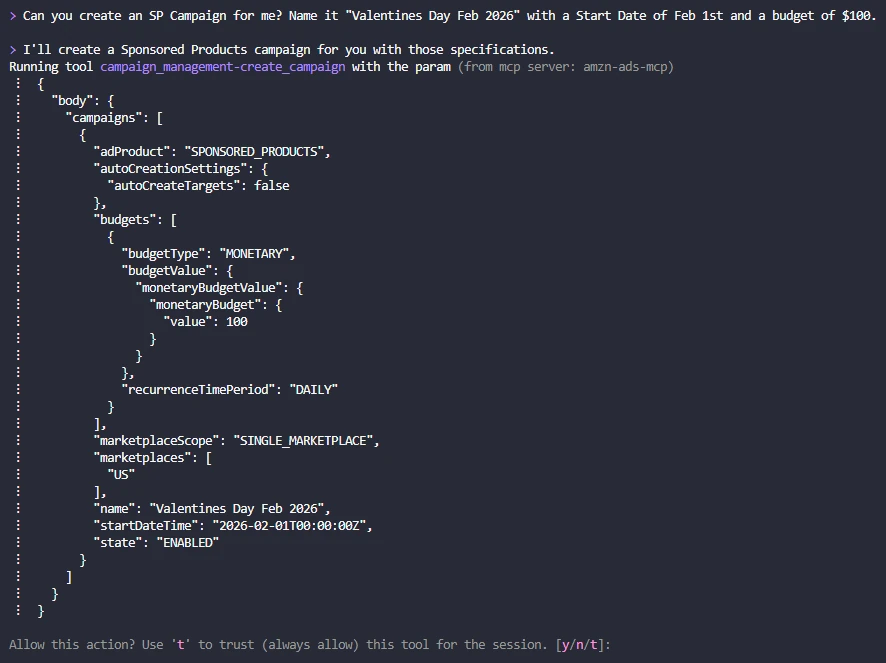
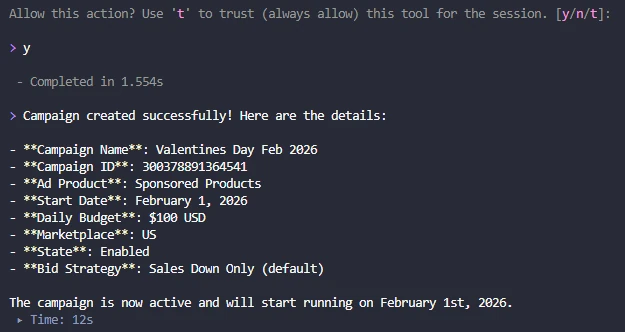
Examples from the Amazon Ads MCP Server documentation, reproduced above as text so they can be copied and read on a phone.
Note what the model filled in on its own: the daily recurrence and the bid strategy were never mentioned in the request.
Before you let it write
Use two steps rather than one. First:
Show exactly what you are going to change, including campaign ID,
current value and new value. Do not execute anything yet.
Then confirm the specific action after reading it. For early tests, avoid bulk changes and delete operations.
Can dangerous tools be switched off
Amazon shows how to disable tools in Kiro CLI through disabledTools, for
example campaign_management-delete_campaign and
campaign_management-delete_ad. In Claude Desktop what you can restrict depends
on the connector permissions in the current implementation.
If OAuth does not work
Redirect URI mismatch. Check the callback is exactly
https://claude.ai/api/mcp/auth_callback.
Claude sees no advertising accounts. Check the API access, the Amazon user, that user's access to the account, and that the MCP endpoint matches your region.
The connector is there but the tools do not work. Run the OAuth authorisation again and check the Client ID and Client Secret.
Connecting Claude Code
Public client:
claude mcp add --transport http amzn-ads-mcp \
  https://advertising-ai.amazon.com/mcp \
  --client-id <id> --callback-port <port>
Private client:
claude mcp add --transport http amzn-ads-mcp \
  https://advertising-ai.amazon.com/mcp \
  --client-id <id> --client-secret <secret> --callback-port <port>
The Claude Code callback is http://localhost:<port>/callback.
Security
- do not publish the Client Secret;
- do not paste access or refresh tokens into prompts;
- confirm which account and profile you are pointed at;
- start with read-only requests;
- ask for the plan before any change;
- treat delete tools separately.
A workable order:
Connect → List accounts → Read data → Generate report
→ Recommend → Review → Write
In short
For Claude Desktop the path is:
Amazon Developer → LwA security profile → Allowed Return URL
→ Claude Desktop connector → Amazon Ads MCP endpoint
→ OAuth 2.1 → Login with Amazon → first prompt
First test:
Show me my advertising accounts
If Claude returns your real advertising accounts, the integration works.
Useful links
Published by UNITIX Agency, an Amazon growth agency and an Amazon Ads Verified Partner. More at unitix.pro/insights.
Check your own product
ASIN Inspector
Paste an ASIN or an Amazon product link. You get the price and Buy Box, rank and how it has moved, ratings, images and video, and the search terms the product is clicked on. Free, and it needs no access to your account.